Open Context is listed in the ChatGPT plugin catalog, so connecting takes a few clicks — no URLs to paste and no developer settings to enable.
Install from the catalog
Sign in to Open Context
Make sure you have an account at opnctx.ai. You’ll authorize access to it in a moment.
Open Plugins and search
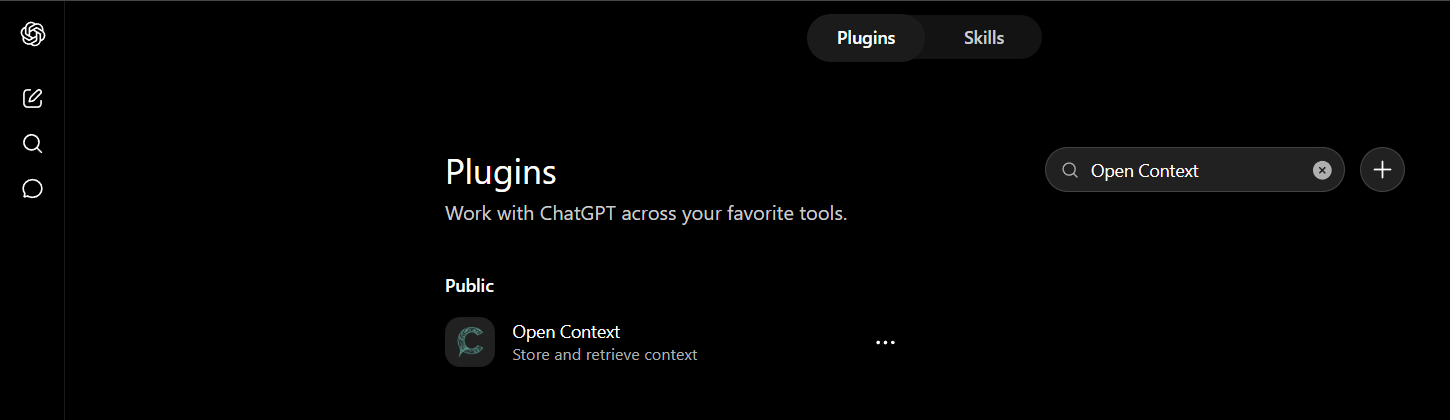
In ChatGPT, go to Plugins and search for Open Context, published by FOUND Studios LLC.
Install the plugin
Open the listing and click Install plugin.
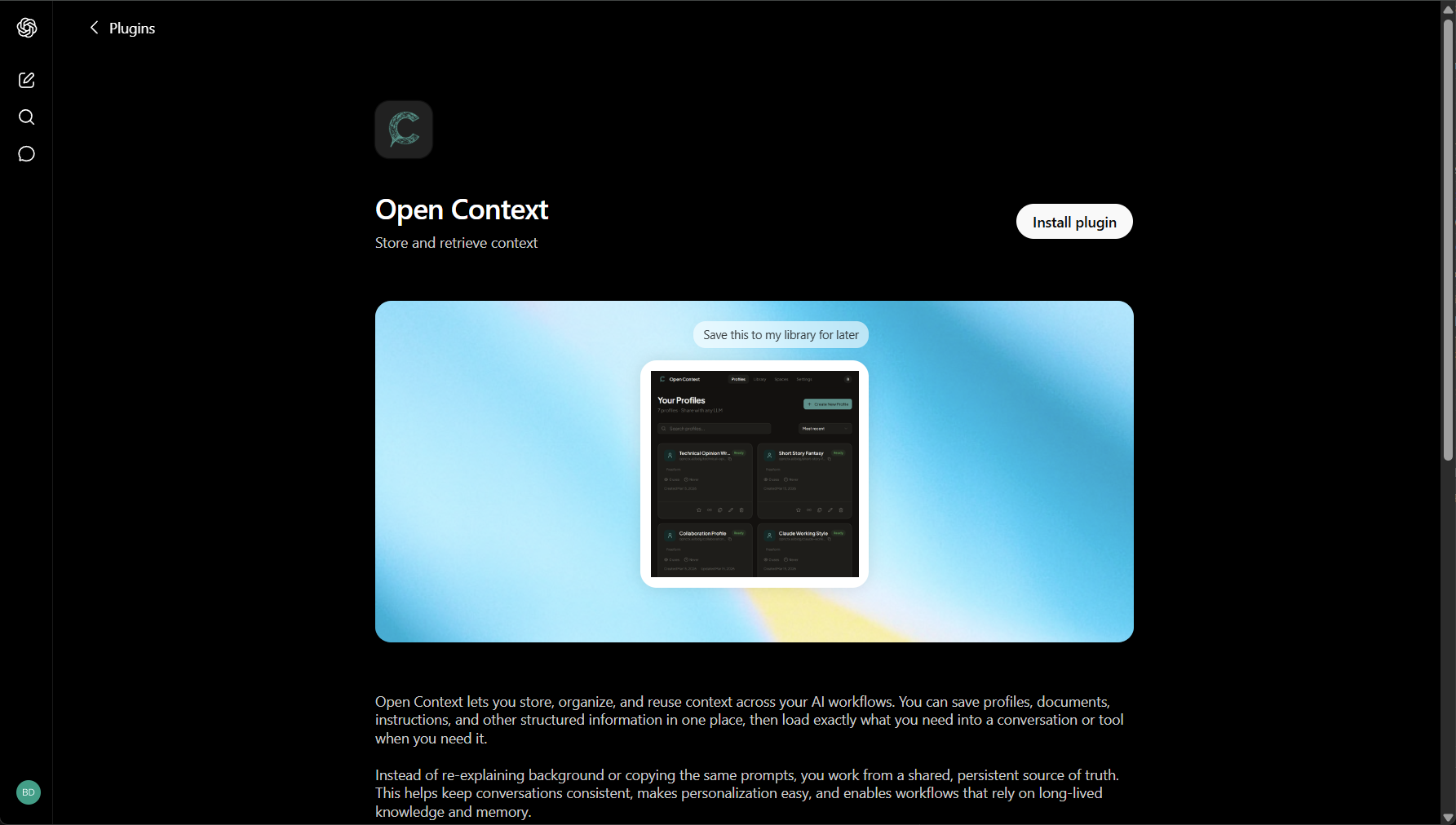
You can also jump straight to it: chatgpt.com/plugins/plugin_asdk_app_696c1b3261d88191b98fc70125826939
Approve access
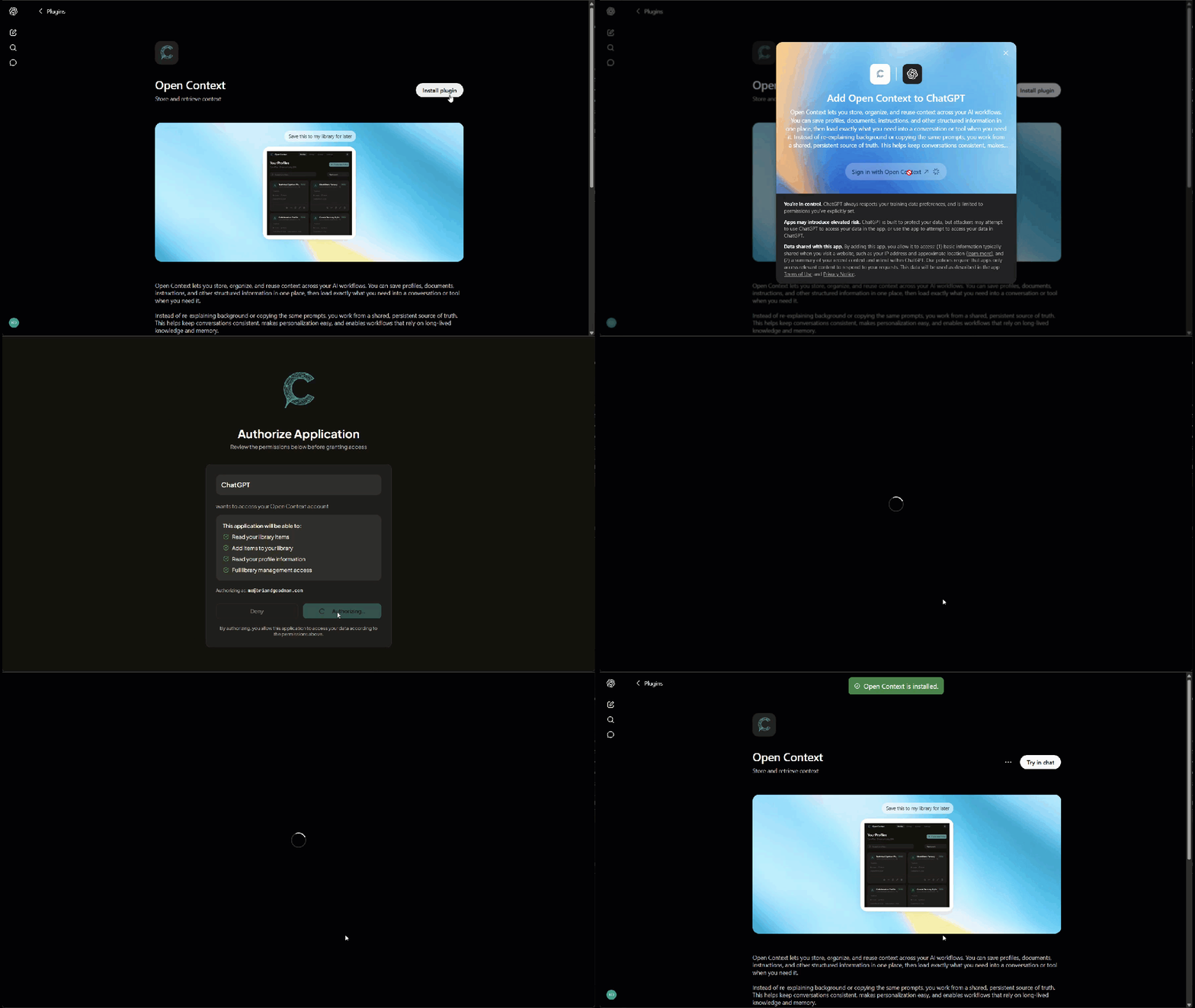
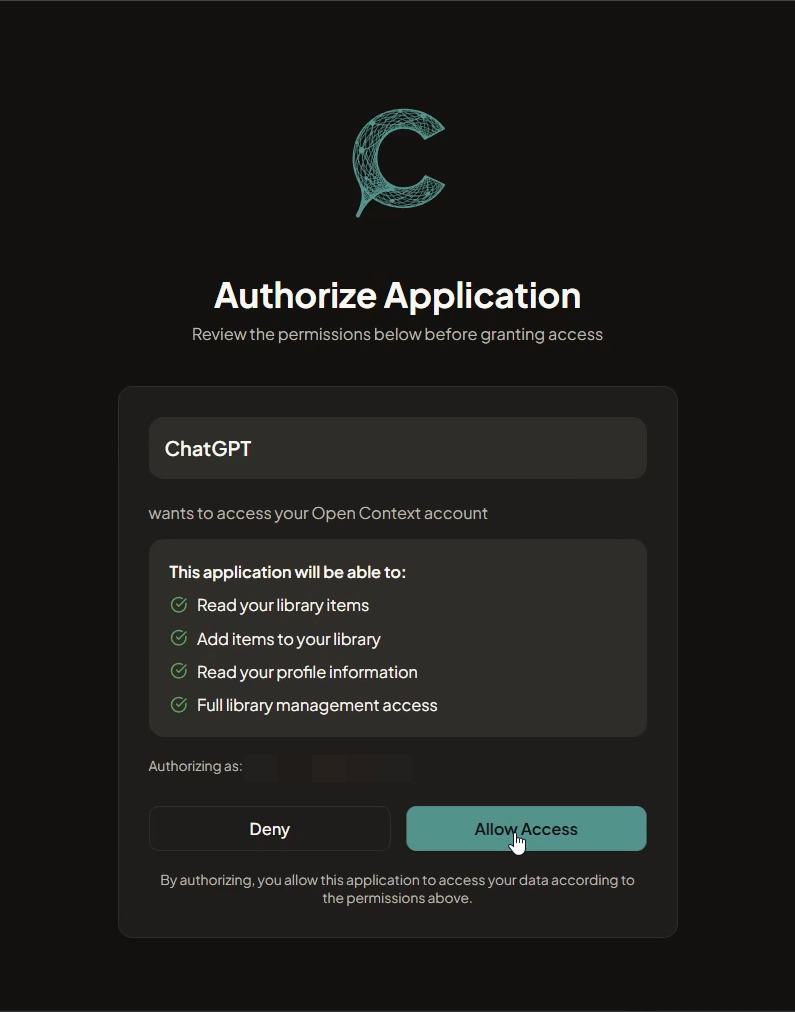
Sign in at opnctx.ai when prompted, review the permissions, and click Allow Access.
Confirm it’s installed
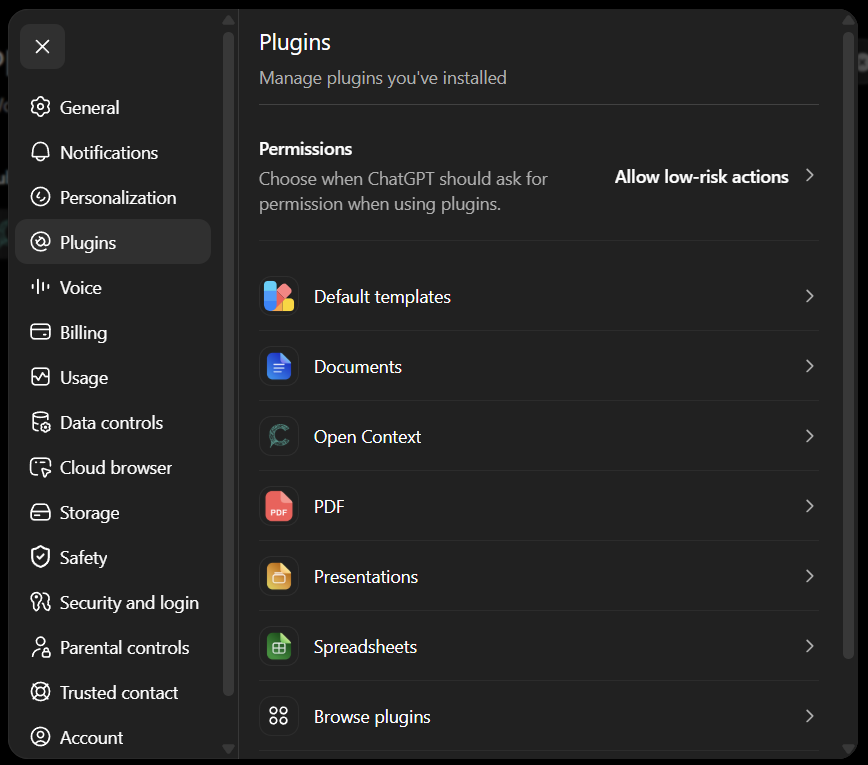
Open Context now appears under Settings → Plugins.
Verify the connection
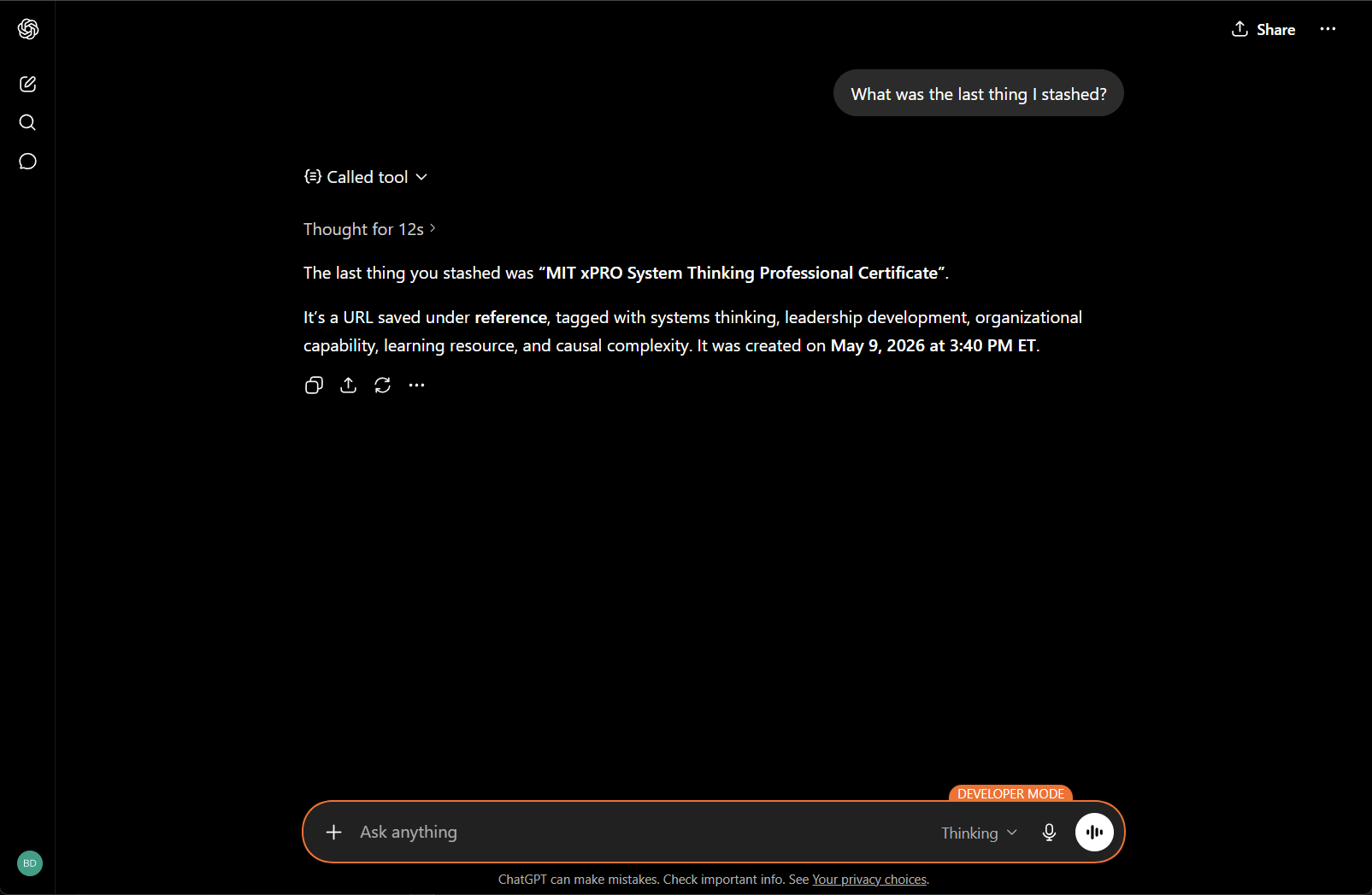
Ask ChatGPT: “What was the last thing I stashed?” — it will call your Open Context tools and respond with results from your Library.
What to try first
| Prompt | What happens |
|---|---|
| ”What was the last thing I stashed?” | Calls get_last_stash |
| ”Search my library for [topic]“ | Calls search_library |
| ”What do you know about me?” | Calls get_profile |
| ”Save this to my library: [text]“ | Calls stash_content |
For the full tool list see MCP tools reference.
Selective saving
Paste a system prompt so ChatGPT knows when to save automatically: Prompt for selective saving.
Adding it manually instead
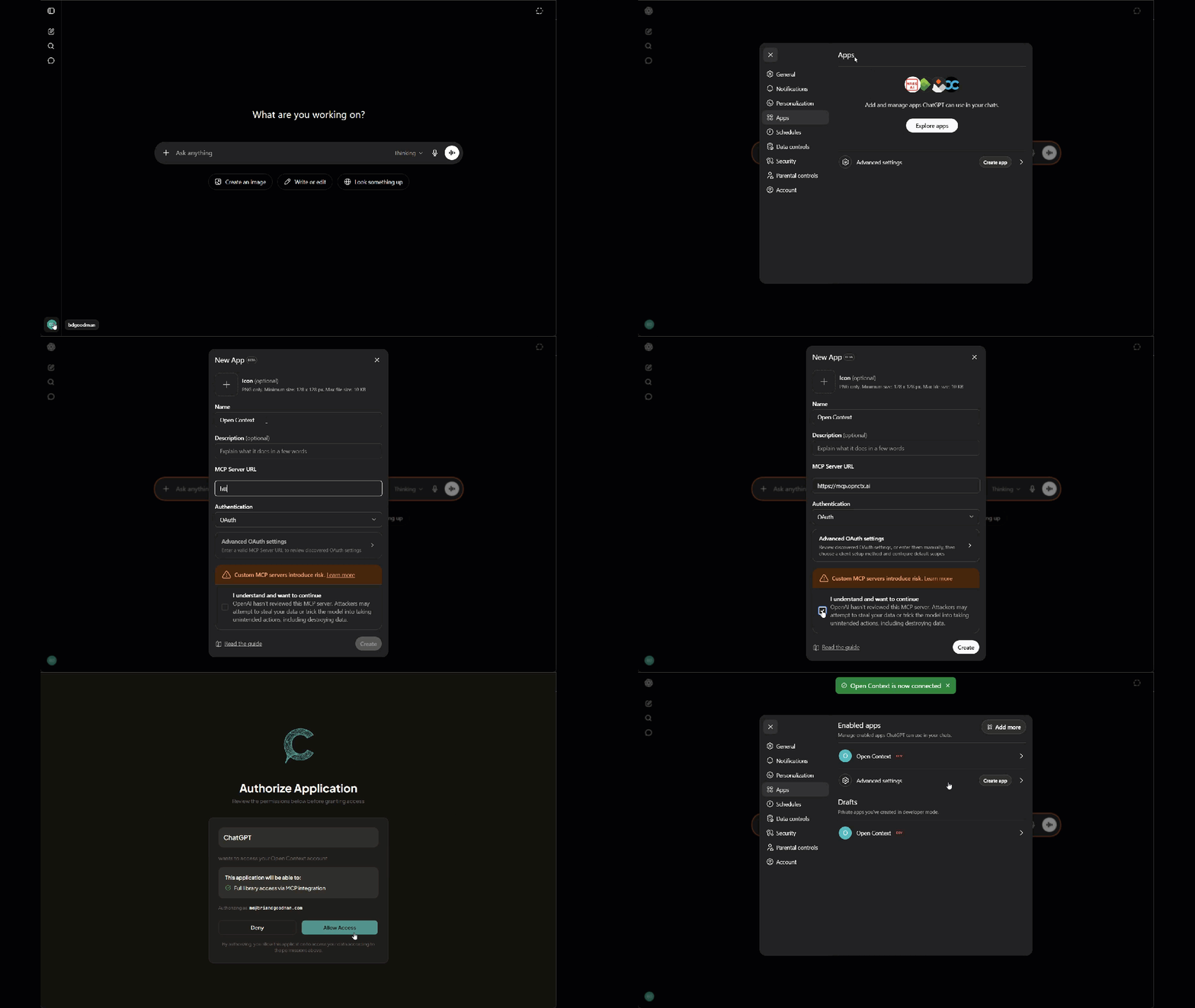
If the catalog is unavailable to you, ChatGPT also accepts the server URL directly — open the connectors or integrations panel and add an MCP server at https://mcp.opnctx.ai. See Any MCP client for the full manual path.