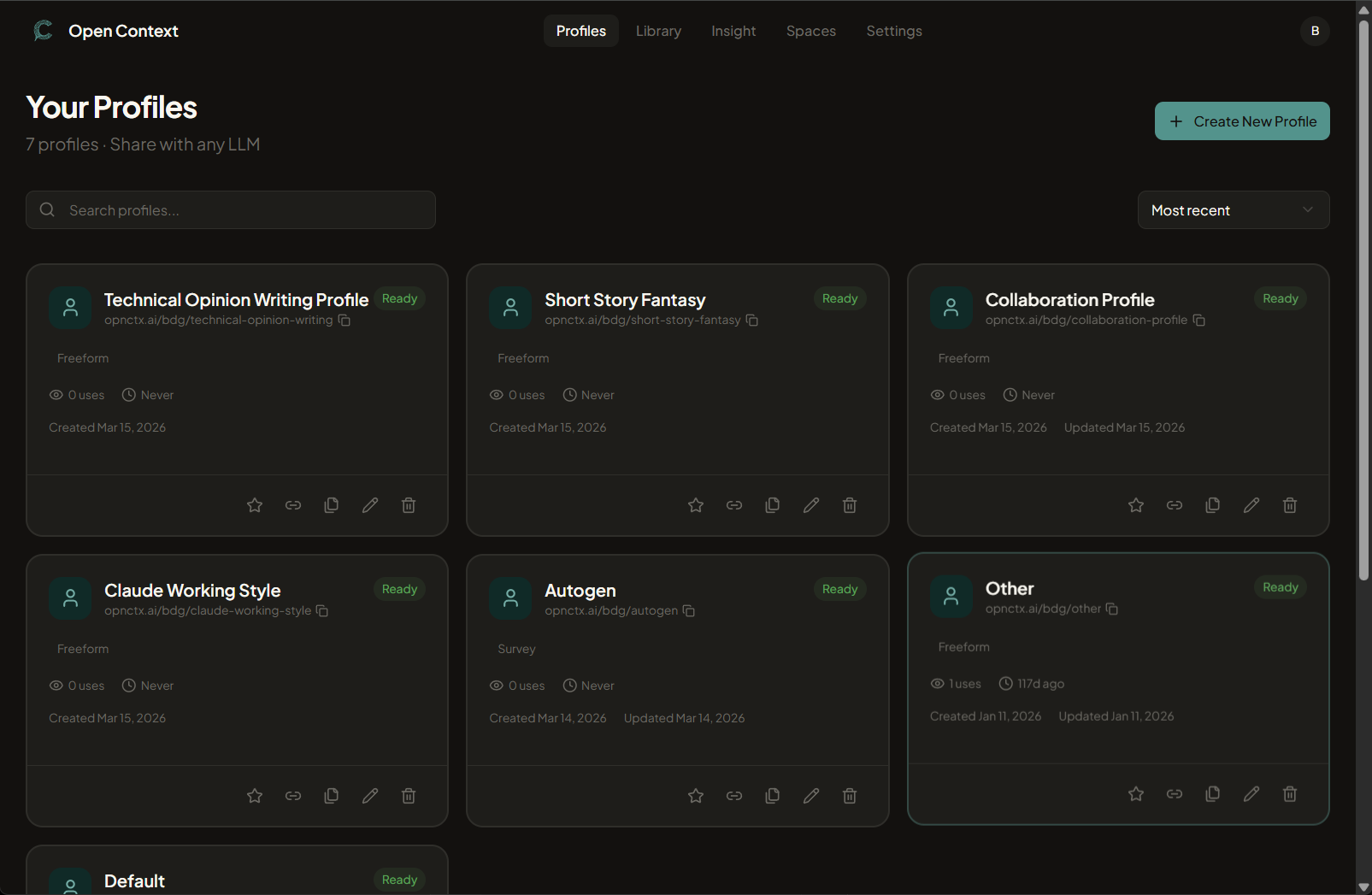
Profiles are portable identity briefs — context an assistant loads via get_profile before answering, so it understands who you are and how you work without you having to re-explain every session.
What to capture
Think briefing memo, not autobiography:
- Role & goals — What you optimize for week to week (speed, correctness, diplomacy, experimentation).
- Communication — Desired tone (direct, exploratory, pedagogical); depth (skim vs. exhaustive); formatting preferences.
- Domains — Industries, tools, or subject areas the assistant should know you work in.
- Constraints — Sensitivities, citation expectations, time zones, anything the assistant should avoid assuming.
Creating and editing
Open opnctx.ai/profiles
Sign in with your magic link or connected account.
Create a profile
Give it a name that reflects the context (e.g. “Work”, “Personal”, “Technical writing”). You can have multiple profiles for different modes.
Write in structured markdown
Lists and short headings work better than long paragraphs — assistants parse structured guidance more reliably.
Save and revisit
Update your profile after a role change or when you notice an assistant making stale assumptions.
How assistants use it
When an assistant calls get_profile, it receives your profile body and uses it to frame its answers. You can prompt this explicitly (“load my profile”) or paste a selective saving prompt that triggers it automatically.
Sharing publicly
Profiles are private until you turn on Share publicly in the edit view. See Public sharing for how that works and how it compares to assigning a profile to a Space.