Your Library is the private collection of things you’ve saved — research snippets, articles, notes, decisions, prompts, specs. Anything an assistant might need to find later goes here.
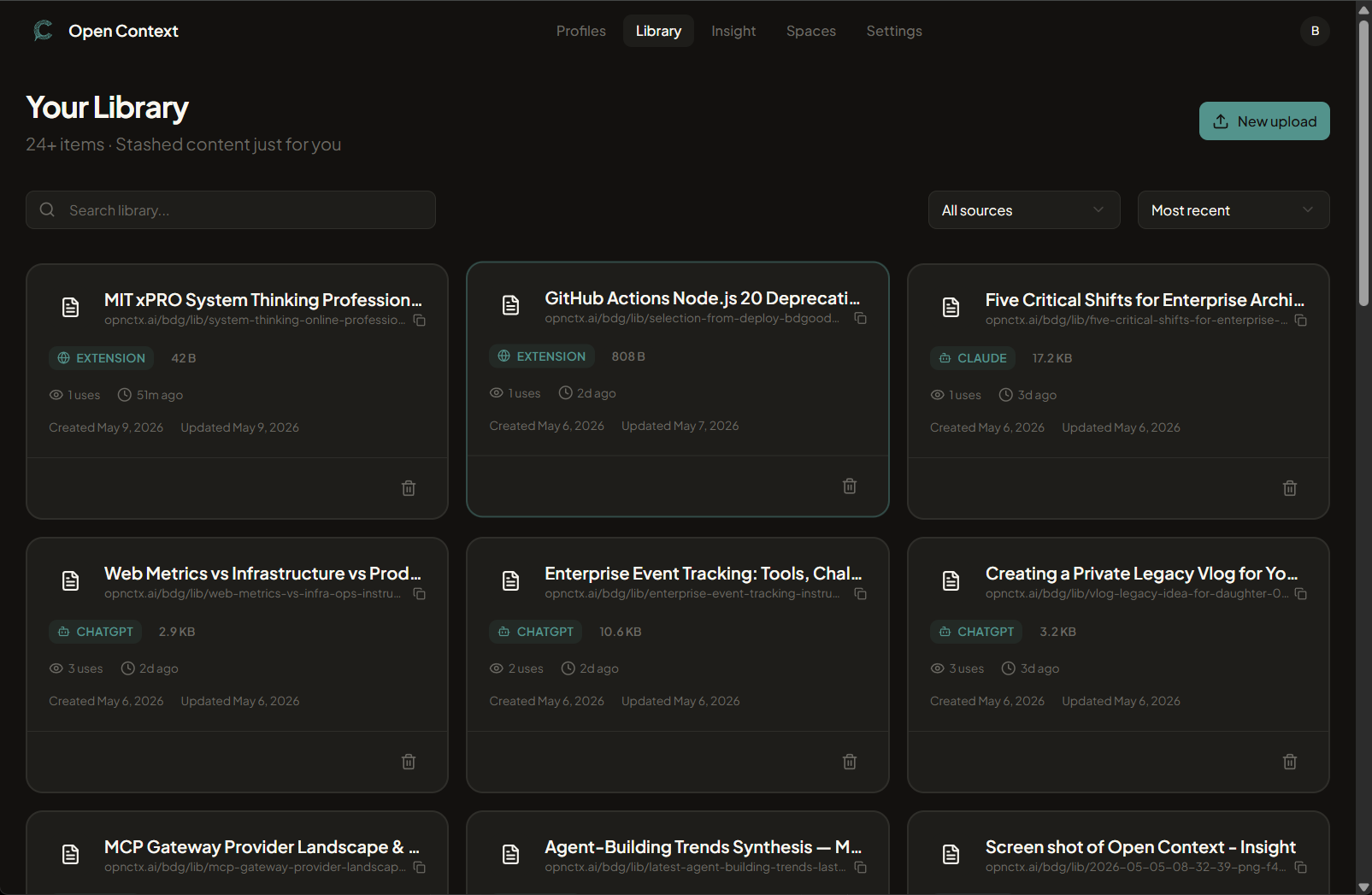
Saving items
- Chrome extension — Select text or right-click anything on a page and choose Save to Open Context. Full walkthrough: Chrome extension.
- Web app — Paste or write directly at opnctx.ai.
Tags and search
Add tags when you save so you can find things later. The search bar uses both keyword and semantic matching — so “notes from the product meeting” will surface the right item even if you didn’t use those exact words as a tag.
Use list_library_tags (via your assistant) to see which tags you’ve used most — useful when you want to keep your taxonomy consistent.
Cards and rows
The toggle in the top right switches between cards (roomier, with summaries) and rows (compact, more items per screen). The same toggle appears on Spaces and Profiles, and your choice is remembered.
Enrichment
When you save something, Open Context automatically adds:
- A short summary for quick scanning.
- Suggested tags based on what you’ve saved before.
- Entities — the people, organizations, technologies, products, places, and events the item is about. These power the Knowledge Map in Insight; you don’t manage them directly.
You can edit the summary and tags before or after saving.
Media
Images, PDFs, and other files can be saved alongside text. Use the web app for uploads, or save a URL directly and Open Context will capture the content.
Sharing publicly
Every item is private until you turn on Share publicly in its edit view. See Public sharing for how that works and how it compares to sharing into a Space.
Items saved via the Chrome extension show Web Extension as their source — useful for filtering later.