The Open Context Chrome extension lets you save anything from the web — selected text, whole pages, images, links — directly into your Library without leaving the tab.
Install
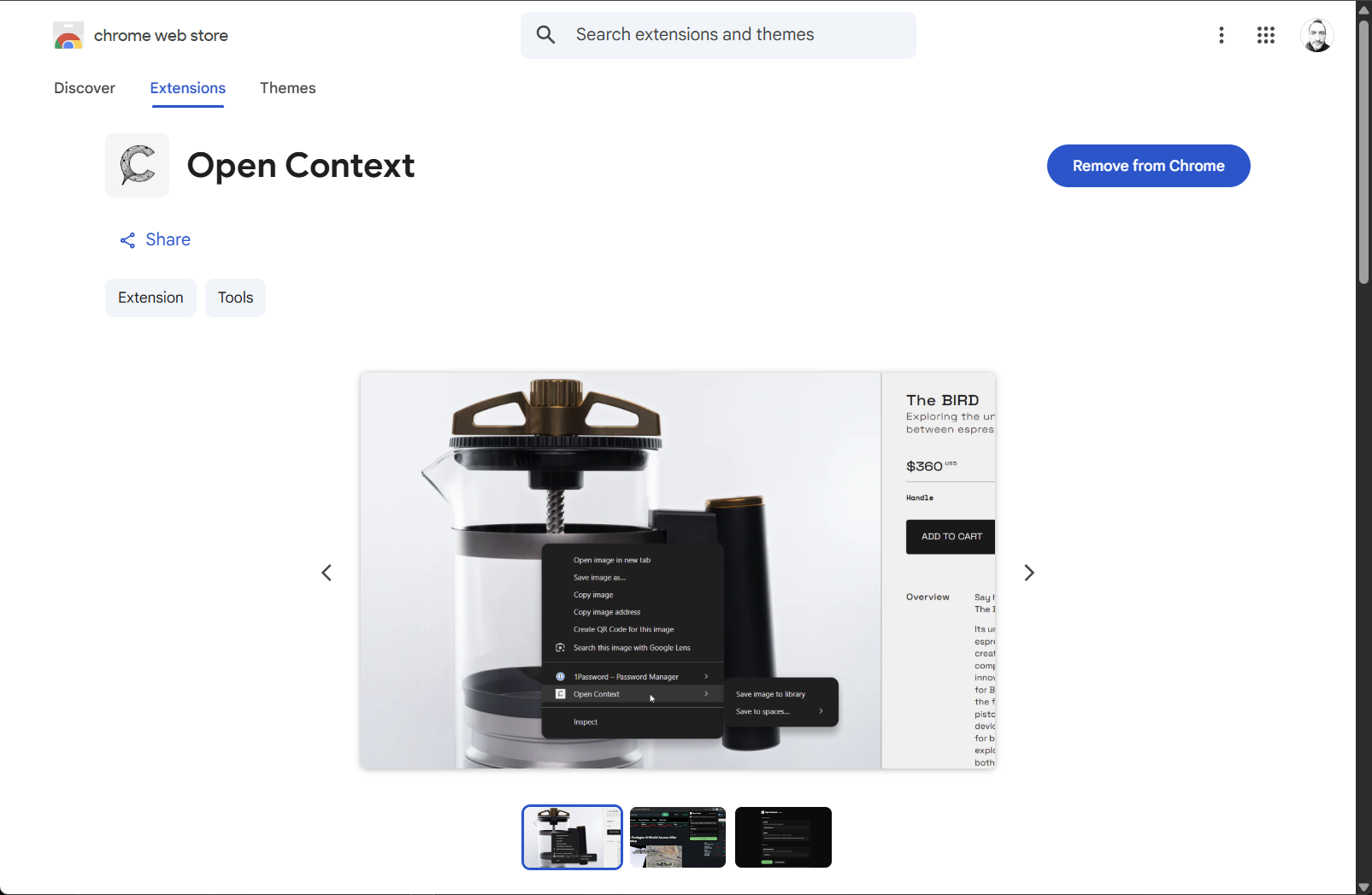
Get the extension from the Chrome Web Store
Install Open Context — click Add to Chrome, then confirm when prompted.
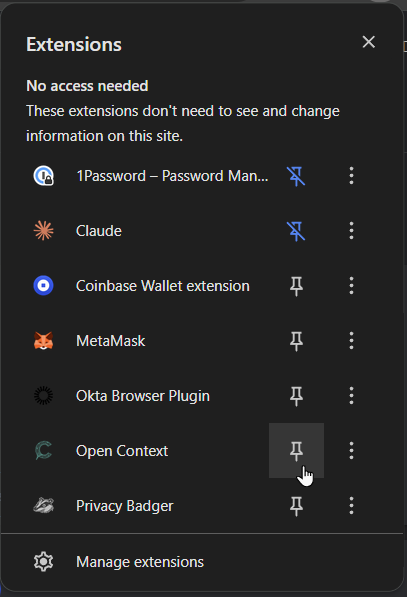
Pin it to your toolbar
Open the puzzle-piece Extensions menu and click the pin next to Open Context so the icon is always one click away.
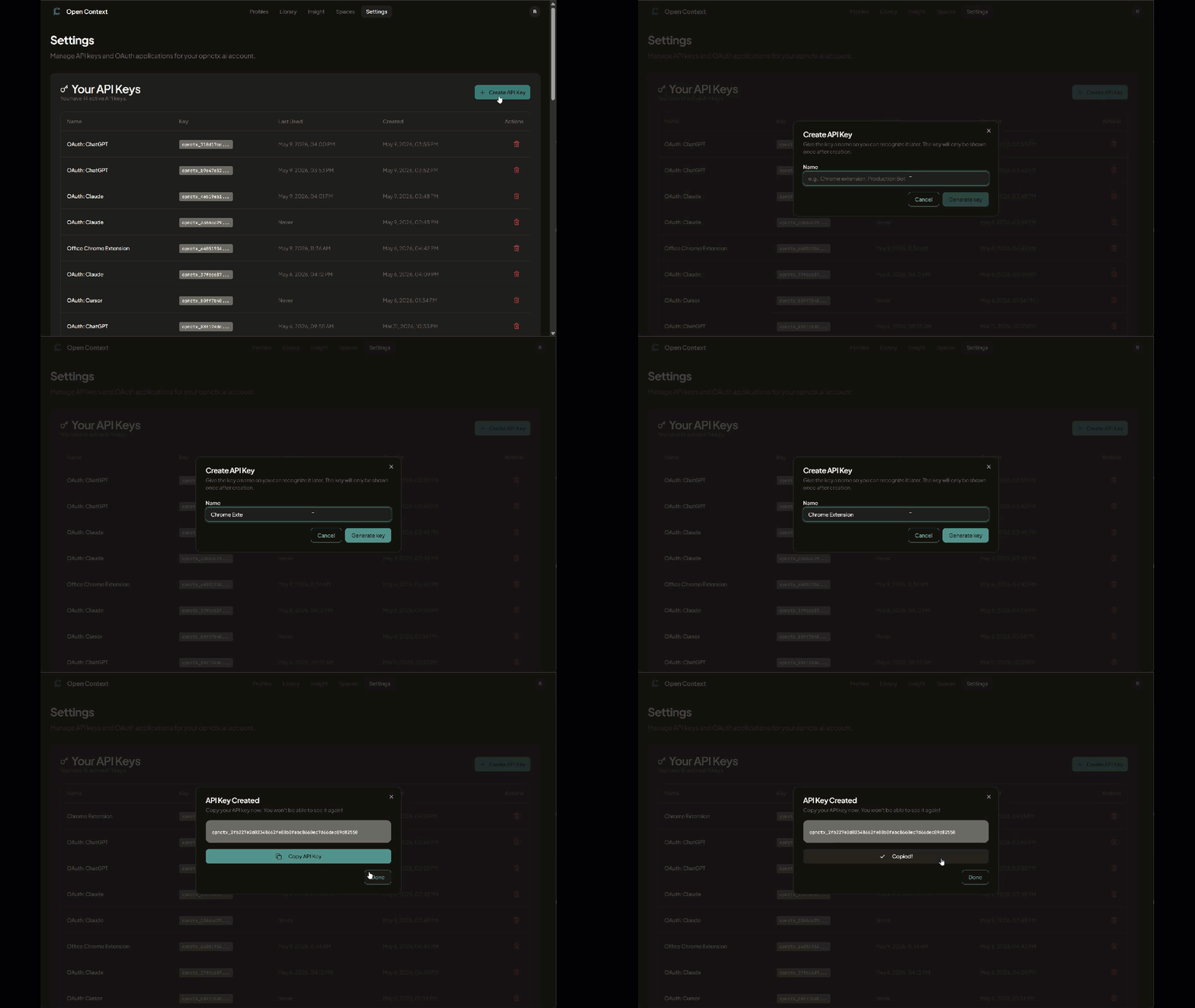
Create an API key
In Settings → API Keys on opnctx.ai, click Create API Key, give it a name (e.g. “Chrome extension”), and copy the key.
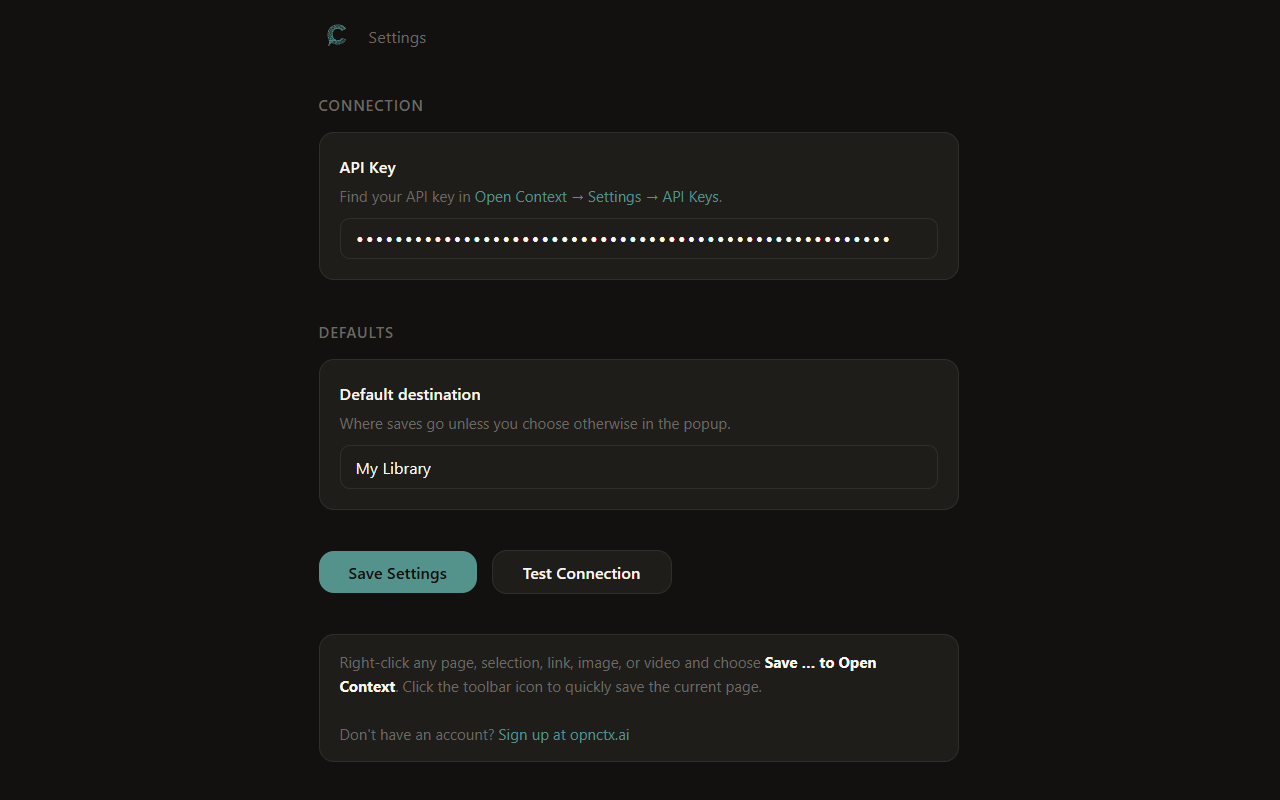
Paste the key into the extension
Click the toolbar icon → Options, paste your API key, and hit Save Settings. Use Test Connection to confirm it’s working.
The API key is only for the extension. Connecting Claude or ChatGPT is a separate, keyless flow — you install Open Context from their catalogs and approve access in the browser.
Saving content
Once the extension is set up, saving is one click or right-click away.
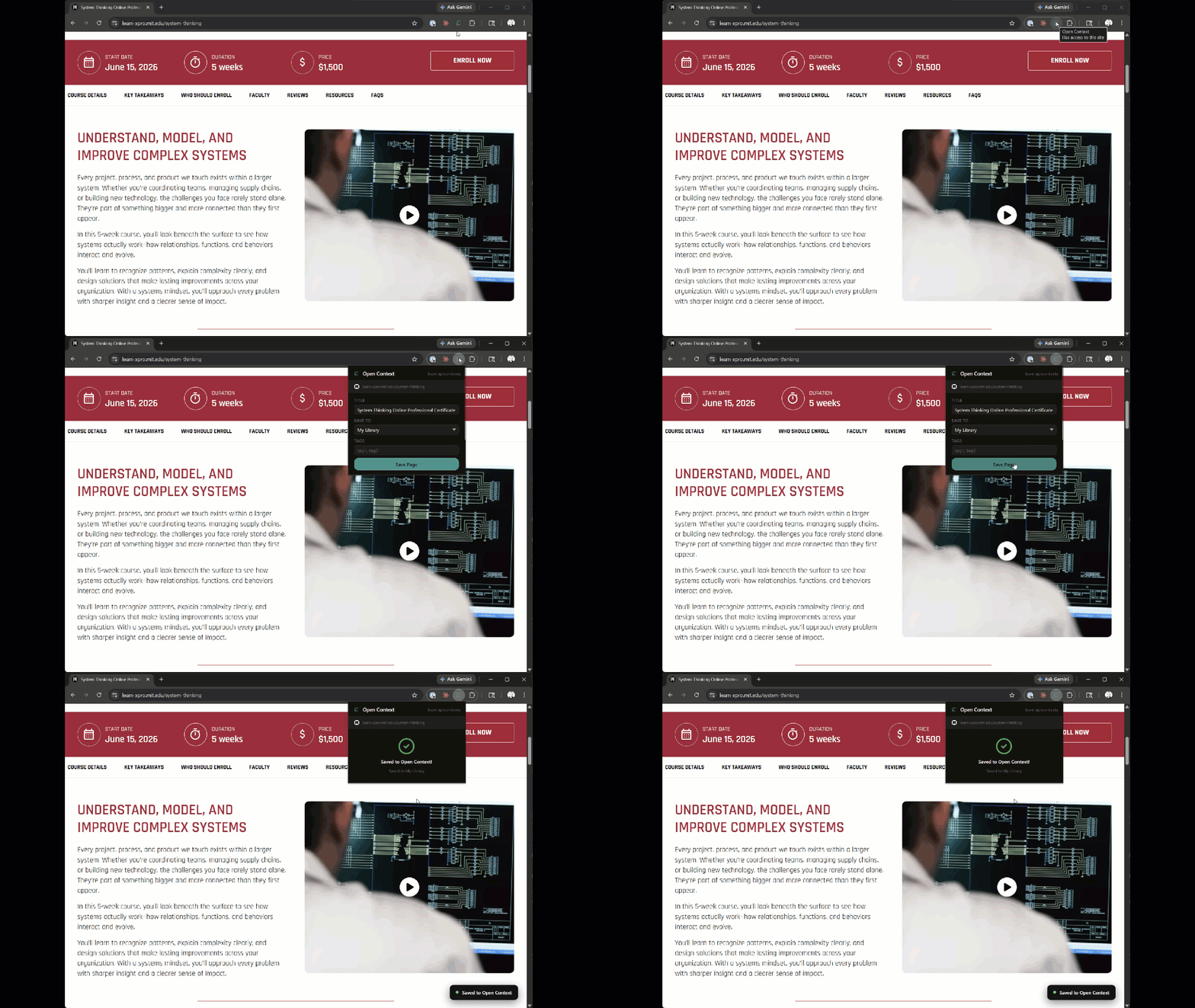
Toolbar button — Click the Open Context icon to save the current page. A popup lets you edit the title and tags before confirming.
Right-click menu — Select any text on the page, right-click, and choose Save to Open Context. Works on images and links too.
After you save
Saved items land in your Library at opnctx.ai and are immediately available to any connected MCP assistant. The item shows Web Extension as its source so you can filter by capture method later.
Ask Claude or ChatGPT “What was the last thing I stashed?” and it will retrieve it via your Open Context connection.