Insight surfaces patterns across your Library automatically — themes you keep returning to, unexpected connections between items, gaps in what you’ve saved, and the items that tie everything together.
It becomes useful once you have at least five saved items. Below that, there isn’t enough to find meaningful patterns.
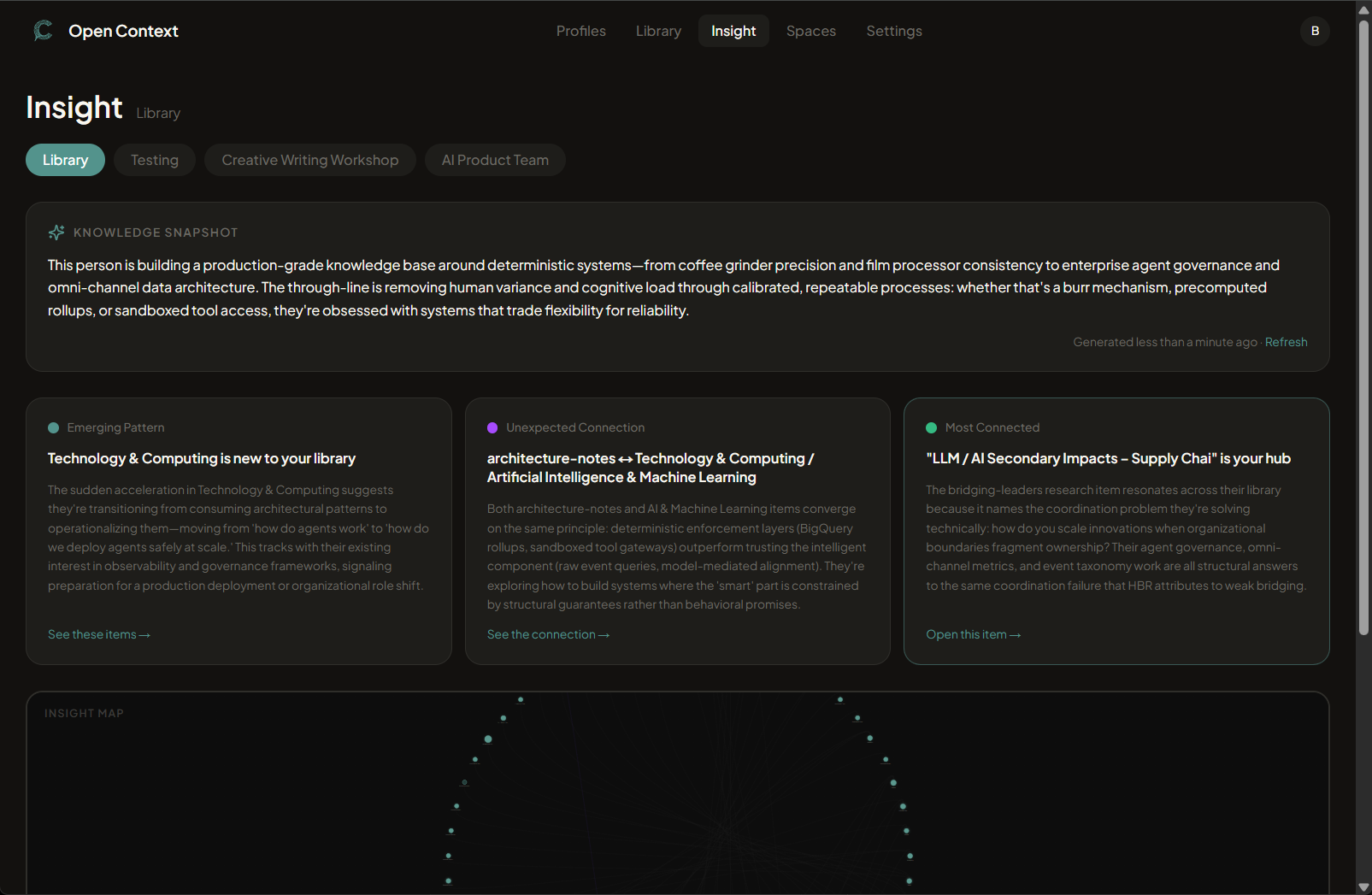
What you’ll see
Emerging pattern — Topics or themes appearing repeatedly across different items. A signal that something is worth tagging explicitly or turning into a reference.
Unexpected connection — Two items you wouldn’t have paired together that share meaningful overlap. Often the most interesting card.
Knowledge gap — Areas adjacent to things you save that you haven’t captured yet. Useful for identifying blind spots.
Most connected — Items that link to the most other things in your Library. Good candidates for a summary or pinned reference.
Map views
The map at the top of Insight has three views, switched with the Concept / Semantic / Entities toggle. Each one draws the same Library from a different angle.
Insight Map (Concept) — Your items grouped by the themes Insight found, with the connections it drew between them. The default, and the one that mirrors the cards below.
Semantic Map (Semantic) — Every item placed by meaning rather than by tag, so items that read alike sit near each other whether or not you tagged them the same way. Colored by top-level category, sized by how often you’ve opened the item. Useful for spotting clusters your tags don’t capture.
Knowledge Map (Entities) — The people, organizations, technologies, products, places, and events your items are about, drawn as hubs linked to the items that mention them. Only entities appearing in two or more items are shown — a name that appears once adds no structure. Useful for “what have I saved that touches this company?”
Knowledge Snapshot
A short narrative at the top of Insight that ties the cards together. Useful as a quick brief before a meeting or when you want a summary of what’s been on your mind.
Refresh
Hit Refresh after adding a significant batch of items or doing a major tagging cleanup. Small edits don’t need it — Insight updates on a schedule automatically.