Spaces are shared libraries for teams. Members contribute items, and any connected assistant can search across the whole Space — so everyone’s context is reachable, not just your own.
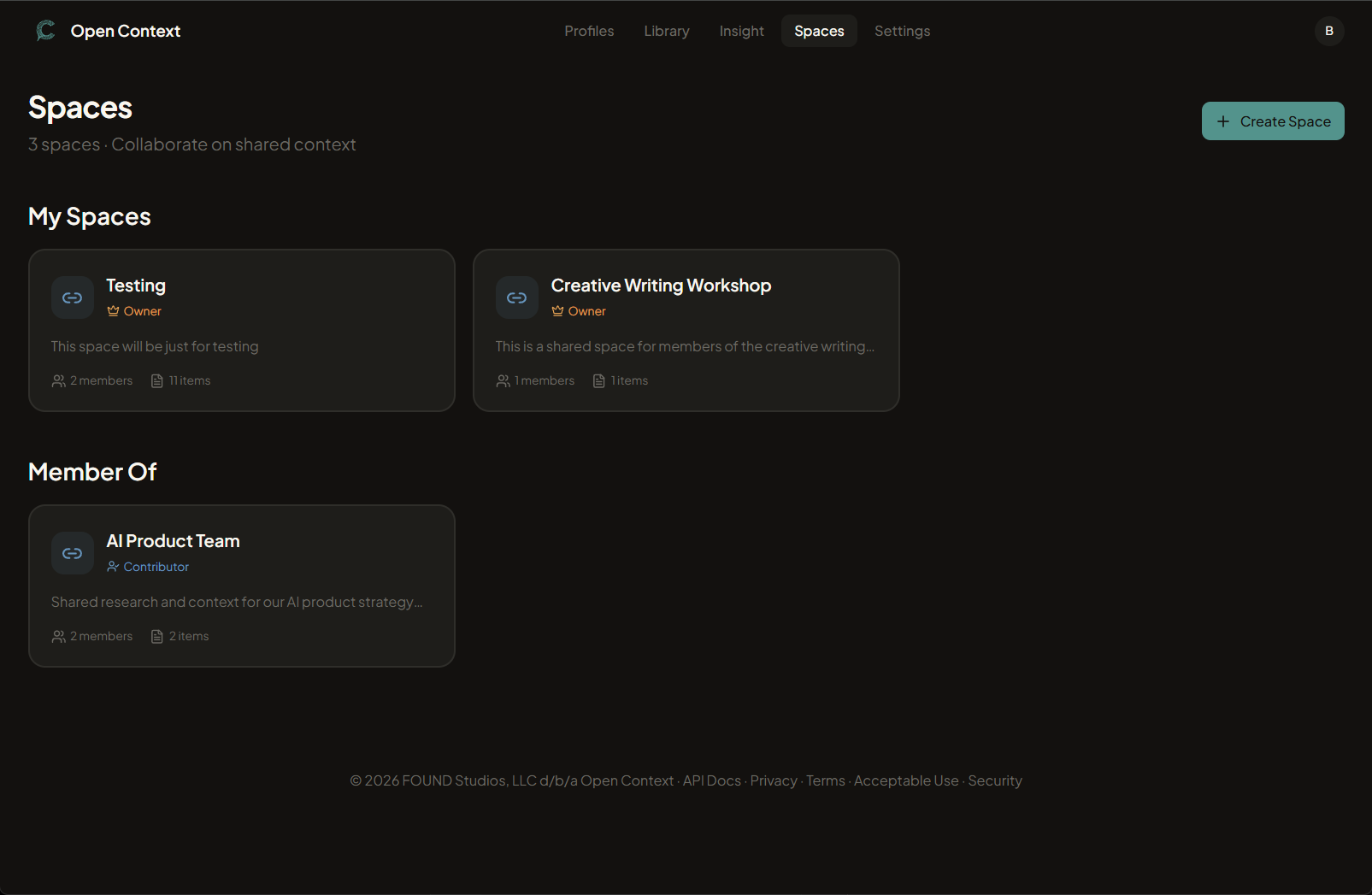
Creating a space
From opnctx.ai, create a Space and give it a plain name — the initiative, project, or team it represents. Add a short description so members know what belongs here.
Adding members
As the Space owner, send email invitations from the Space settings. Invitees follow the link, sign in to Open Context once, and have access immediately.
Adding content
Content comes out of members’ personal Libraries. Save an item to your own Library first, then use the Share to space action on it. Members see it alongside everything else in the Space.
Sharing doesn’t hand over ownership — whoever shared an item can remove it from the Space at any time.
How assistants search a Space
A connected assistant searches a Space the same way it searches your personal Library, scoped by the Space’s ID:
search_librarywith aspaceIdfinds specific items inside that Space.get_spacereturns a summary of the Space along with member profiles — useful before starting work.list_spacesshows which Spaces you belong to.
Membership is checked server-side on every call, so an assistant can only reach Spaces you’re actually in. See the MCP tools reference for full parameters.
Spaces vs. your personal Library
| Personal Library | Space | |
|---|---|---|
| Who can see it | Only you | Space members |
| Who adds content | You | Any member |
| AI scope | Your items only | All shared items |
Personal items have a third option: sharing publicly via a link instead of into a Space. The two are mutually exclusive — an item shared to a Space can’t also be public, and vice versa.